Auto-finalise test sessions
Auto-finalisation gives every new test session a time limit. When the limit passes, Insights finalises the session on its own, as long as no test-taker is still active in it. Test administrators don't have to finalise each session by hand at the end of the day, and no session is left open indefinitely.
Turn on auto-finalisation
- Select Settings > Assessment Event Settings and expand Event Settings.
- Tick Enable test session scheduled finalisation.
- Enter Default duration for test sessions (minutes), from 1 to 1,440. The field is unavailable until the box is ticked.
- Select Save Assessment Event Settings.

The limit applies to every test session created from then on. A session created before the setting was turned on has no limit. Turning the setting off later doesn't remove the limit from sessions that already have one. The limit can't be changed for a particular assessment event or test session.
How it works
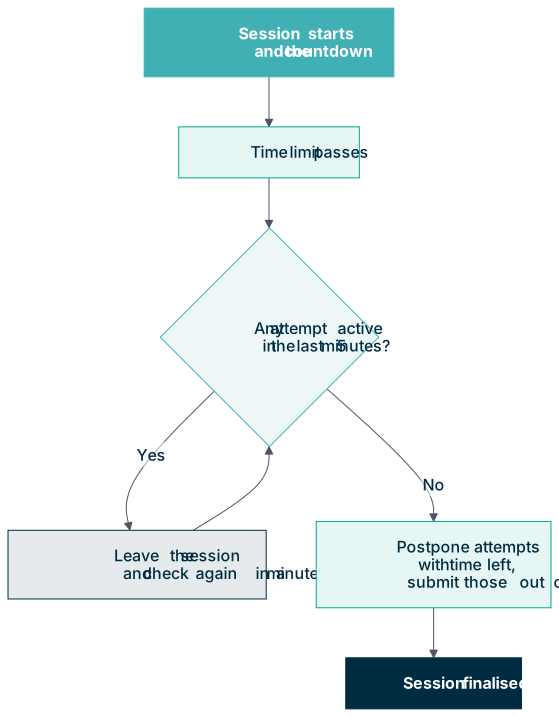
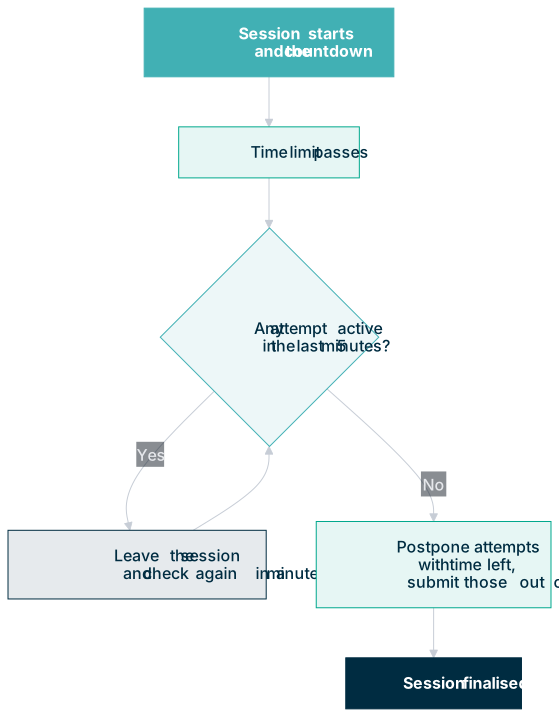
The countdown starts when the test session starts. From then on, the session dashboard shows the time the limit passes as Test session auto finalised at.
Once a minute, Insights checks every started or paused session whose limit has passed:
- If any attempt in the session has been active in the last 5 minutes, the session is left as it is and checked again a minute later.
- Otherwise, the session is finalised.
What counts as active
An attempt is active while its test player is open and connected to Insights. The player reports in every 20 seconds and every time it saves an answer, so the test-taker doesn't have to be doing anything. An attempt stops counting as active about 5 minutes after the player is closed, the device is shut down or the connection is lost.
What happens when a session is finalised
Insights deals with each open attempt first, then finalises the session:
- An attempt that still has time, or has no time limit, is postponed. It's taken out of the session to be picked up later.
- A timed attempt with no time left is submitted.
If an attempt can't be postponed or submitted, the session is left as it is and tried again a minute later. The same happens when Stop Session Finalisation on Failure to Sync Results is on and an attempt's results have failed to sync.
The session then shows as finalised, exactly as if a test administrator had finalised it from the session dashboard.
Example
You set the limit to 120 minutes and start a session at 9 am. From 11 am, Insights checks the session once a minute. Once every test player in the session has been closed for at least 5 minutes, the session is finalised. While any is still open, Insights waits and checks again a minute later.
Finalise every session at once
An assessment event's Finalise Sessions button uses the same mechanism to close every open session for the event in one go, whether or not scheduled finalisation is turned on. See Finalise every session at once.
Settings
Administrators can configure the following at Settings > Assessment Event Settings, inside the Event Settings expandable.
Enable test session scheduled finalisation — gives every test session created from then on a time limit, after which it's finalised automatically.
Default duration for test sessions (minutes) — the limit, from 1 to 1,440 minutes. The default is 300. The field is available only while the setting above is ticked.
Stop Session Finalisation on Failure to Sync Results — when on, a session can't be finalised, by hand or automatically, while any of its attempts has a results sync that is in progress, failed or in conflict.