Text entry
A text entry item asks test-takers to type a short answer, such as a word, a name or a number, into a single box. Insights compares each response with the answers you list and marks it automatically. For longer written answers that a marker scores, use an extended text item instead.
Open the practice test to see examples in the test player.
Practice test
Open this test in the Janison test player and complete some examples of text entry items.
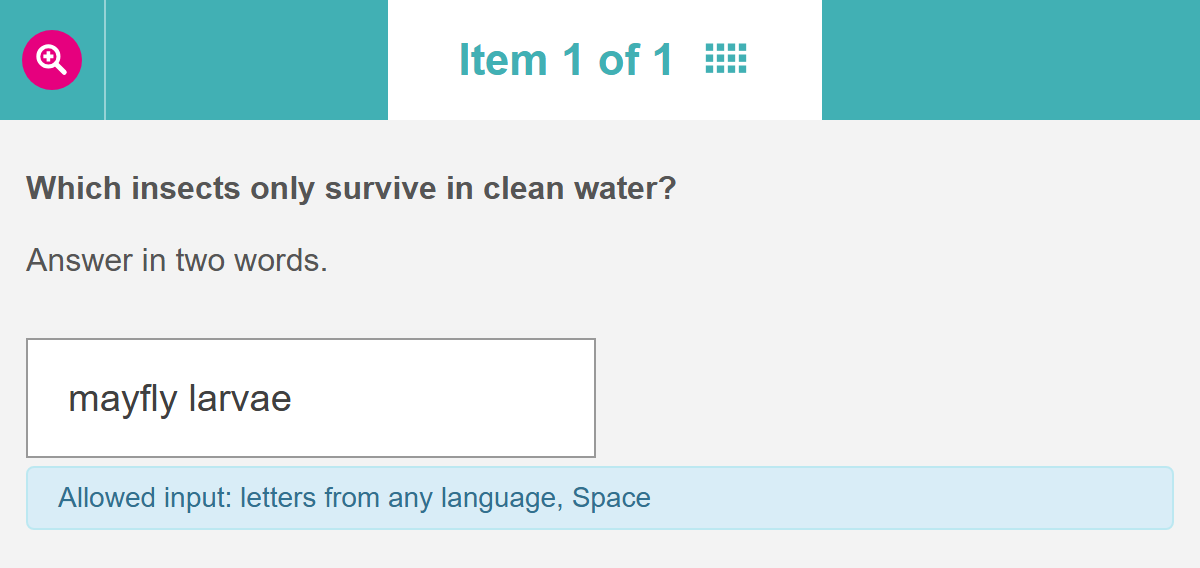
Test-takers type their answer in the box. If the item limits what they can type, a hint below the box can show what's allowed.
Create a text entry item
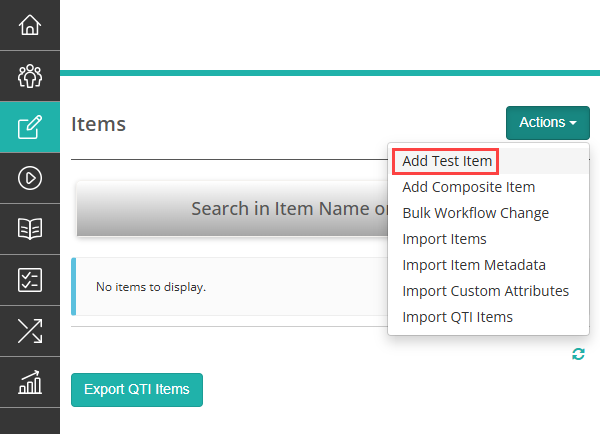
Navigate to Author > Items and select Add Test Item from the Actions dropdown.
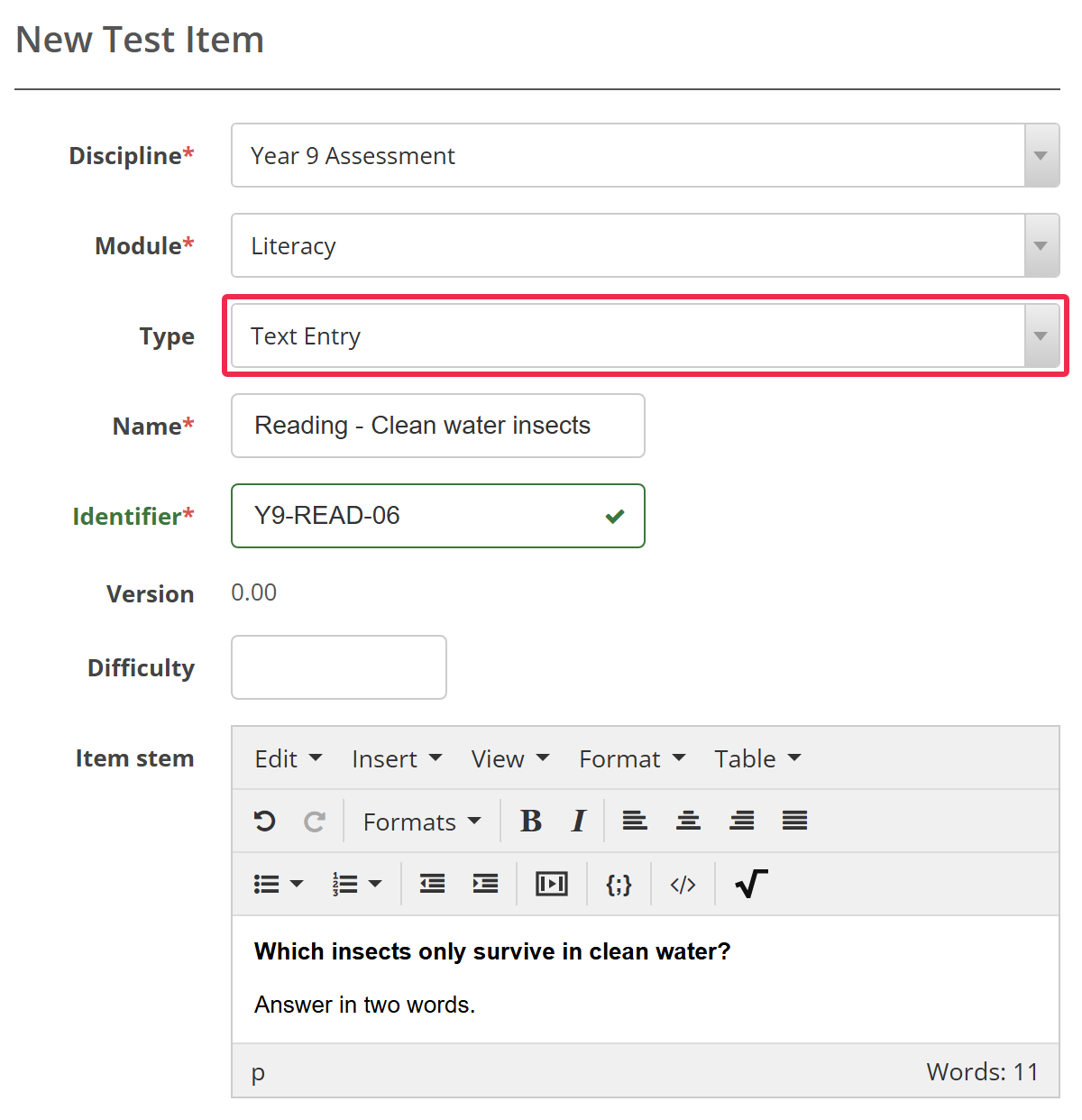
The New Test Item form opens. Choose the Discipline and Module, select Text Entry as the Type, and enter a Name and Identifier. Difficulty is optional. Then enter the text of the item in Item stem.
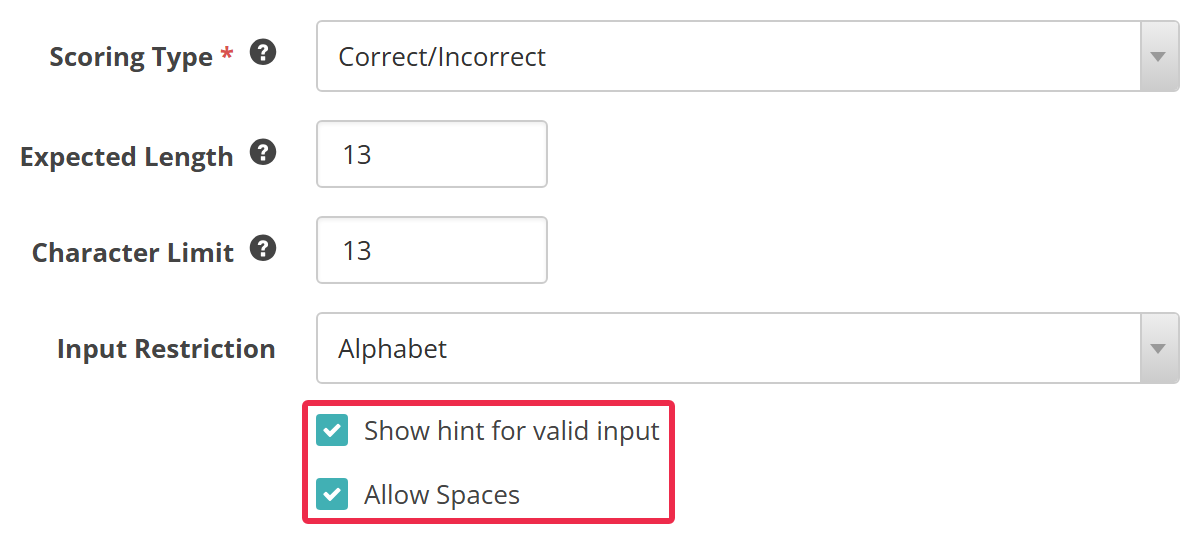
Next, set up the answer box.
Scoring Type — how responses are scored. See Setting scores and marking below.
Expected Length — how wide the answer box is. The box shows about that many capital Ws. Leave it blank for a box as wide as the item.
Character Limit — the most characters test-takers can type.
Input Restriction — which characters test-takers can type. Anything else is blocked as they type or paste. The options are:
- None — any characters
- Integer — whole numbers: digits and a minus sign
- Decimal — digits, a minus sign and a decimal point
- Alphabet — letters from any language
- Alphanumeric — letters and digits from any language.
If you choose a restriction, more options appear below it:
Show hint for valid input — shows test-takers what they can type, below the answer box. For example, "Allowed input: letters from any language, Space".
Decimal Places — the most digits test-takers can type after the decimal point. It appears for Decimal.
Allow Spaces — lets test-takers type spaces. It appears for Alphabet and Alphanumeric.
Choosing Integer or Decimal also adds two numeric range scoring types. See Numeric ranges.
Here the restriction is Alphabet, with both of its options ticked:
Answer filters
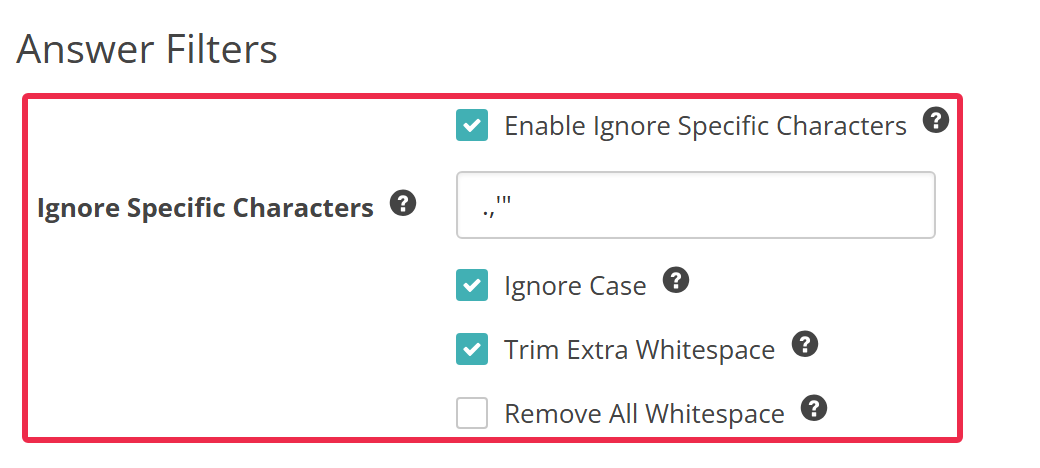
The answer filters tidy each response before Insights compares it with your matches, so small slips don't cost test-takers a mark. Each filter changes your matches in the same way.
Enable Ignore Specific Characters — removes the characters listed in Ignore Specific Characters. The list starts with the full stop, comma, apostrophe and double quotation mark, so "mayfly larvae." matches "mayfly larvae".
Ignore Case — treats capital and lower-case letters as the same, so "Mayfly Larvae" matches "mayfly larvae".
Trim Extra Whitespace — turns 2 or more spaces in a row into one.
Remove All Whitespace — removes every space, including single spaces between words, so "mayflylarvae" matches "mayfly larvae".
Accepted answers
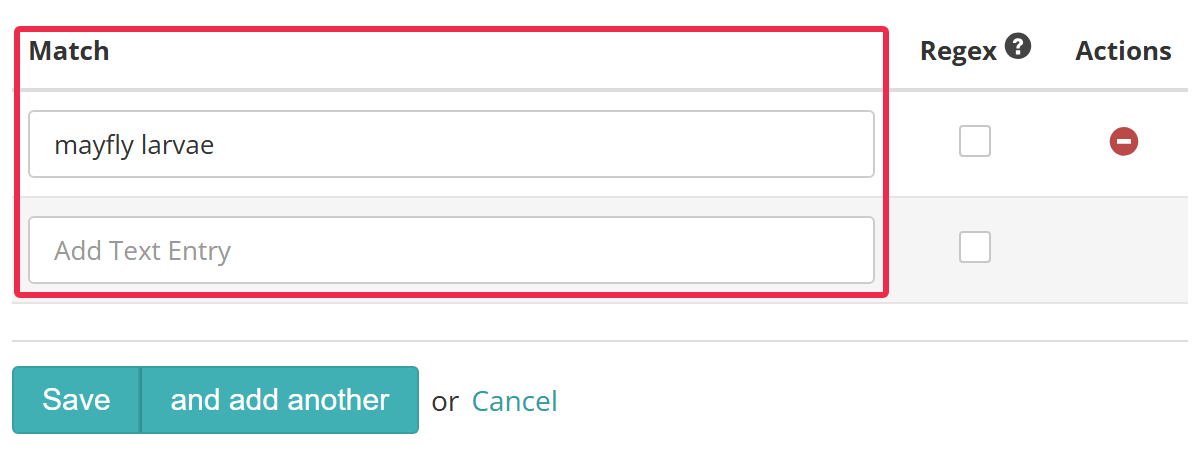
Enter each answer you'll accept in the Match column. A response that matches any of them is correct. The table always ends with an empty row: start typing in it and a new row appears below. To remove a match, select the red delete icon in its Actions column, then select Really? to confirm.
With Integer or Decimal, Insights compares numbers by their value, so a response of 7.50 matches 7.5.
Regex — tick it to treat the match as a regular expression. An expression matches anywhere in the response, so start it with ^ and end it with $ to match the whole response. Insights applies the answer filters to the response but leaves your expression as written, and Ignore Case applies to both. To build and test an expression, use Regex Storm.
Select Save. On a new item, select and add another to save it and open a blank form for the next one.
Setting scores and marking
Text entry items are marked automatically. With Semi-automatic scoring, responses that don't match any of your answers go to a marker.
Scoring type
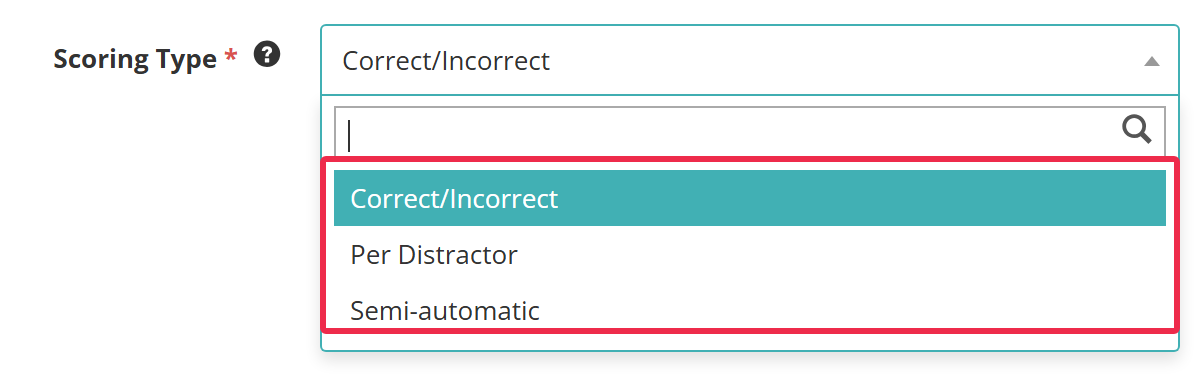
Choose a Scoring Type to set how responses are scored. Every text entry item offers the first three types, and Integer or Decimal restrictions add two more:
- Correct/Incorrect — a response that matches is correct, and any other response is incorrect
- Per Distractor — each match has its own score, so a nearly right answer can earn part marks
- Semi-automatic — matching responses are scored automatically and the rest go to a marker, where an administrator has turned it on in Settings
- Numeric Range – Correct / Incorrect — each row is a range of numbers, and a response inside any range is correct
- Numeric Range – Graded — each range has its own score.
Per distractor
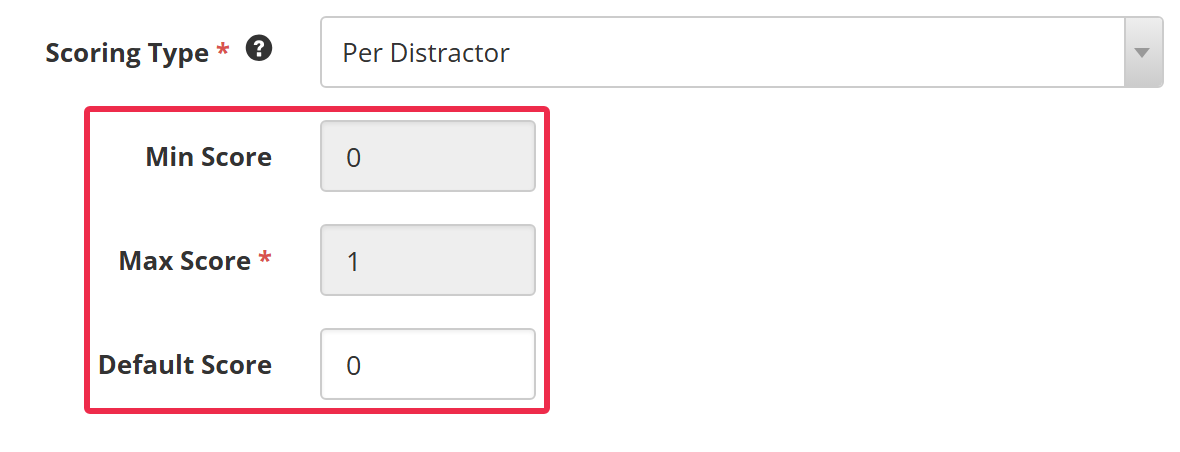
With Per Distractor, these fields appear:
- Min Score — The lowest score the item can give. Insights works it out from the matches' scores and the Default Score, so you can't edit it.
- Max Score — The highest score the item can give. Insights works it out the same way, so you can't edit it either.
- Default Score — The score for any match whose Score is left blank.
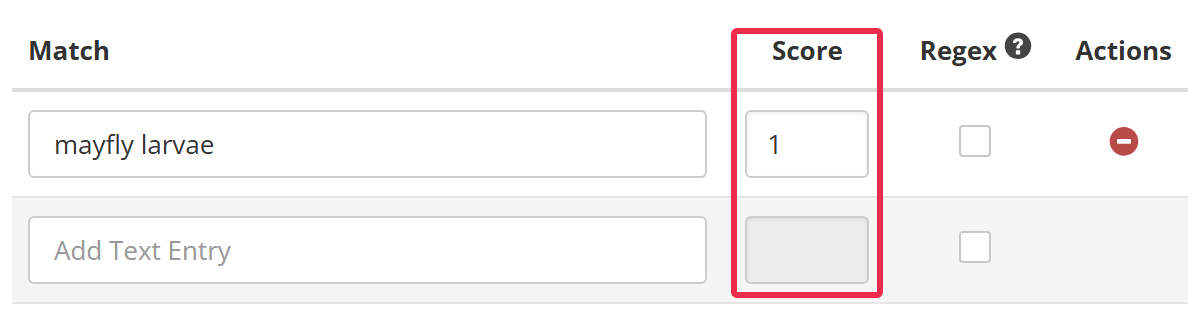
A Score column appears in the match table, where you set the score for each match. Give the best answer the highest score and a nearly right one less. A response that matches none of them scores 0.
Semi-automatic
With Semi-automatic, Insights scores a response that matches one of your answers, using that match's Score. A response that doesn't match goes to a marker. The Score column and the Min Score, Max Score and Default Score fields work as they do for Per Distractor.
The item's page gets a Marking section, where you can add a marking rubric and marking scheme components for the markers. See Set scores on an item. To have the responses marked, include the item in a marking project. See Questions.
Numeric ranges
The numeric range types appear when Input Restriction is Integer or Decimal. Each row of the match table then has a Min value and a Max value in place of the match. A response from the minimum to the maximum, inclusive, falls in that range. Ranges can't overlap, and each maximum must be at least its minimum.
With Numeric Range – Correct / Incorrect, a response inside any range is correct. With Numeric Range – Graded, a Score column appears for each range. The Min Score, Max Score and Default Score fields also appear and work as they do for Per Distractor.
Text entry items in surveys
A text entry survey item collects an answer without scoring it. The form keeps the answer box settings, Trim Extra Whitespace and Remove All Whitespace.
Input Restriction also offers Date, with a Date Format of dd/mm/yyyy, mm/dd/yyyy or yyyy/mm/dd. Test-takers then type the day, month and year into separate boxes, ordered to match the format. See Survey items.
Settings
Administrators can configure the following settings at Settings > Test Designer Settings > Question Options.
Enable semi-automatic marking — adds Semi-automatic to the Scoring Type list on text entry items. It's for sites that use the Janison Extended Marking Plugin.
Under Settings > Test Designer Settings > Available Question Types:
Text Entry — tick For Tests, For Surveys or For Composite to offer text entry items in tests, in surveys or as an interaction in a composite item.
Response Conditions — ticking this column for Text Entry adds an Add Response Condition link to text entry items. The checkbox only appears where response conditions have been enabled for your site.